
StoreDesk Lottery
The ticket rack, counted by scanner
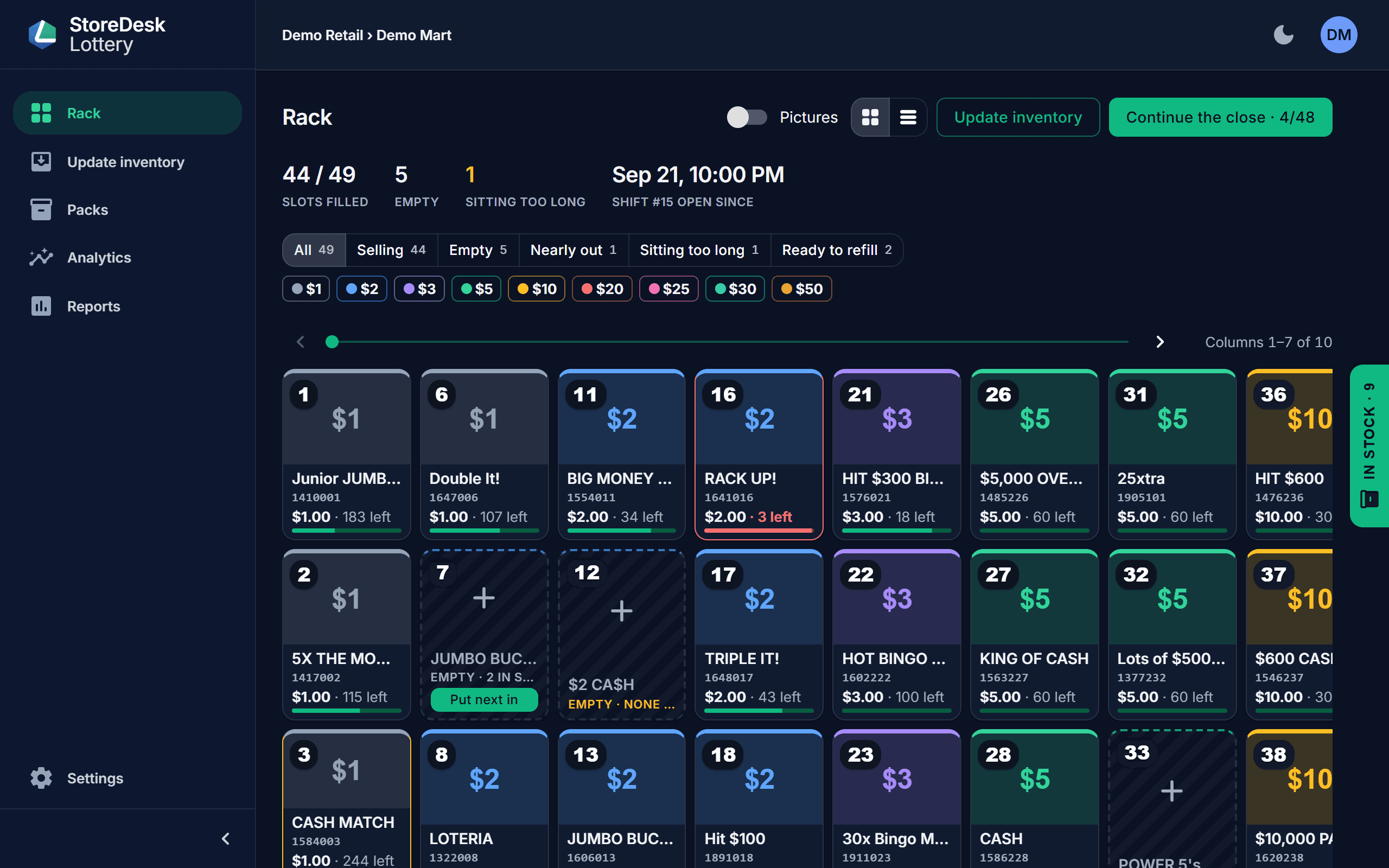
Receive packs, put them out, and close each shift by scanning the rack. It works out what sold and what the drawer owes. Buy it on its own, or with the back office.
Runs on its own, or alongside StoreDesk.
How you get it, with or without the back office
Ask us
Tell us the store and how many boxes your rack has. We set up your store and its sign-ins.
Install on the counter PC
We send the installer. A Windows PC at the counter, online for the first sign-in, and a barcode scanner.
Sign in and set up the rack
Sign in with your StoreDesk email and password, draw the rack, then scan box 1 to the last.
Closing a shift takes a few minutes
Every scan is saved as you go, so a clerk can stop and come back.
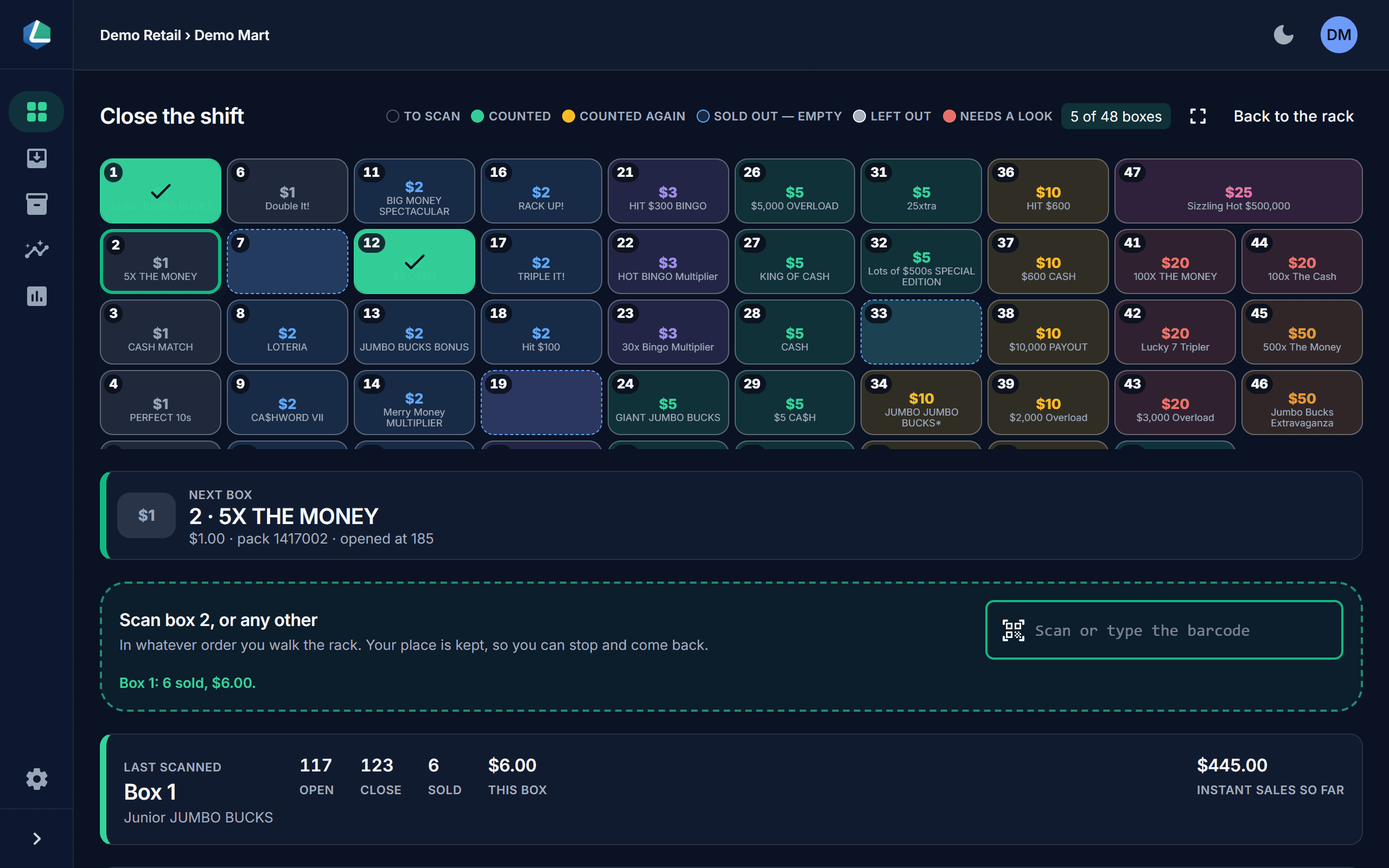
- On the Rack, click Close the shift.
- Scan the ticket showing in each box, in any order. Each box turns green as it is counted.
- A box you can't scan: mark it Sold out, or leave it out with a reason.
- Type three numbers from the lottery terminal: net online sales, online cashes and instant cashes.
- Check Lottery cash, then click Close the shift. The shift report opens and the next shift starts.
What the drawer owes
instant sales − instant cashes + online sales − online cashes
Instant sales come from your scans. A blank amount is never read as zero: tick None this shift instead.
For the owner: check the numbers, fix a day
- Shift and daily reports, for any date range.
- Correct a closed day. Each correction is a new version with a reason, kept in the history.
- Settle the packs that are due, in one click.
- Best sellers, by game and by price.
- Which prices earn their rack space, and what to order for the next two weeks.
- Each role sees only its pages. Staff sign in with a StoreDesk email and password, which we set up for you; you don't need the back office.
- An idle lock signs the counter out after the minutes you choose.
A pack’s life
- ReceivedScanned off the truck into stock.
- On the rackPut in a box. Its count starts at the first ticket showing.
- CountedScanned at every shift close.
- Sold outLeaves its box. The next pack goes in.
- SettledBilled by the state, 21 days after it went out in Georgia.
Shift, day and what to order
Shift report
- Each box: pack, game, open and close ticket, count and total.
- Instant and online sales and cashes, lottery cash and commission.
- Boxes not counted, each with its reason.
- Print, for the paper copy.
Daily report
- Instant and online sales and cashes, per day.
- Packs put out and settled, profit, and lottery cash.
- 7 days, 30 days, this month, or any range.
What to order
- Best sellers, by game and by price.
- Rack advice: give a price more boxes, or fewer.
- What to order, for two weeks' cover.
Set up the rack once, in three steps
The Rack screen then looks like the counter in front of you.
- Drag the shape of your counter: columns and rows.
- Fix the box numbers to match the stickers. Mark wide boxes and add spare boxes.
- Scan box 1 to the last. Each pack is received and put out at the ticket showing, and the first shift starts from there.
Try the demo on the sign-in screen opens a demo store with sample data.
On its own, or with StoreDesk
On its own
- Its own installer and database on the lottery PC.
- Packs, games and shifts stay on that PC.
- Someone who signed in there before can sign in again with the internet down.
With StoreDesk
- Sign in with your StoreDesk email and password. No code or key to type.
- Each closed day's lottery figures go to StoreDesk Service: sales, cashes and lottery cash.
- Packs, games and names never leave the lottery PC.
- A close never waits for the network. If StoreDesk is off, the days wait and send later.
- StoreDesk Desktop shows the days on its Lottery page.
Before you start
- What you need
- A Windows PC at the lottery counter: the store PC or another.
- A barcode scanner.
- Georgia Lottery instant tickets.
- A StoreDesk sign-in for each person.
- Not built yet
- Shift reports by email. Coming soon.
- Lottery screens on StoreDesk Mobile.